
Creating Your Account
Get started with Eleo Suite by creating your account. The sign-up process takes less than two minutes and uses secure, passwordless authentication.
Authentication options
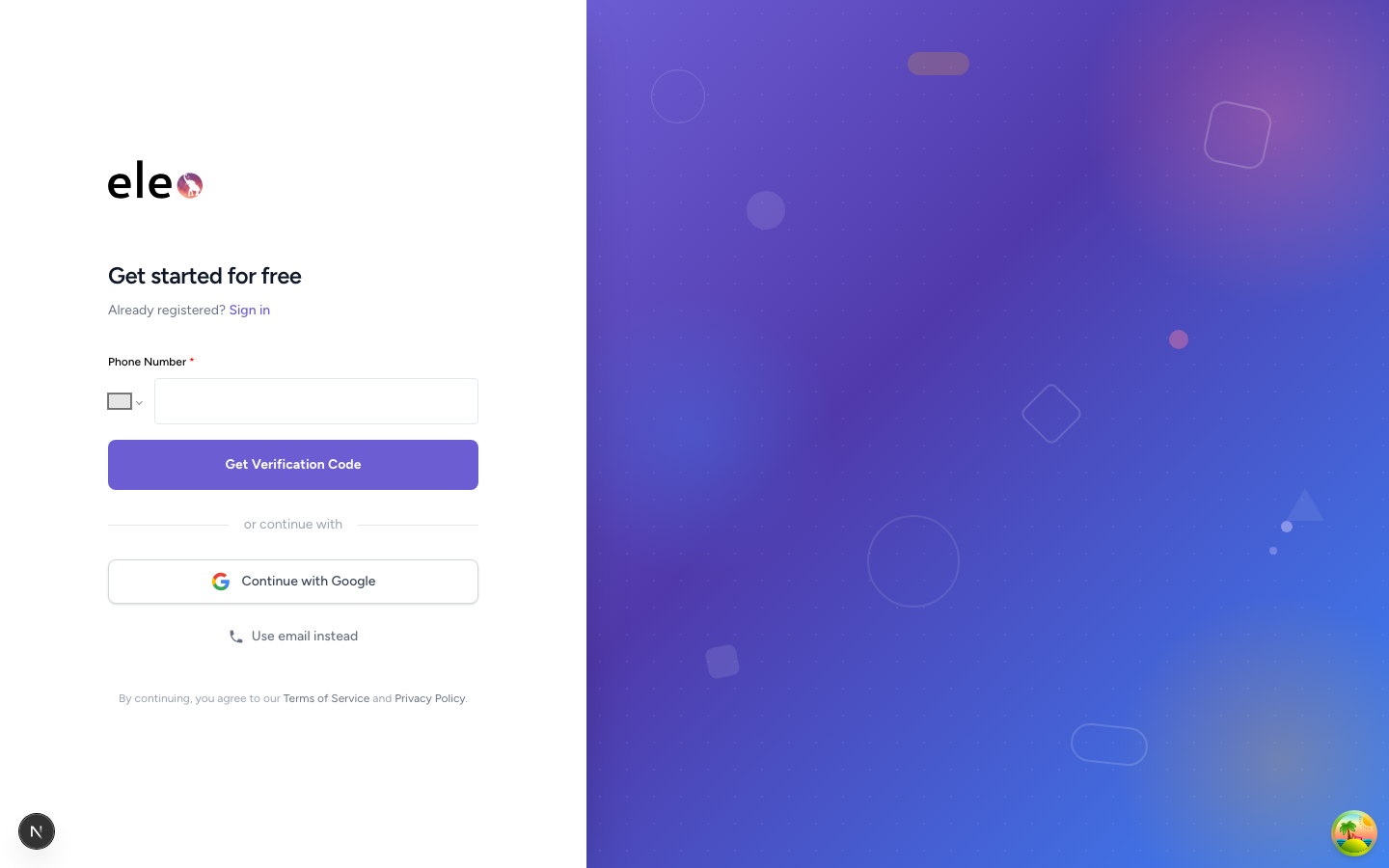
Eleo Suite supports multiple sign-in methods so you can choose the one that works best for you:
- Email (magic code) — Enter your email address and receive a one-time verification code. No password required.
- Google — Sign in instantly with your Google account. Ideal if you already use Google Workspace for your business.
- Phone number — Sign in using your phone number and receive a verification code via SMS.
All three methods are passwordless. You never need to create or remember a password for Eleo Suite.
Sign up with email (magic code)
- 1
Visit eleo.app and click Sign Up
Navigate to eleo.app in your browser. On the landing page, click the Sign Up button in the top-right corner. You can also go directly to the sign-up page at eleo.app/auth/signup.
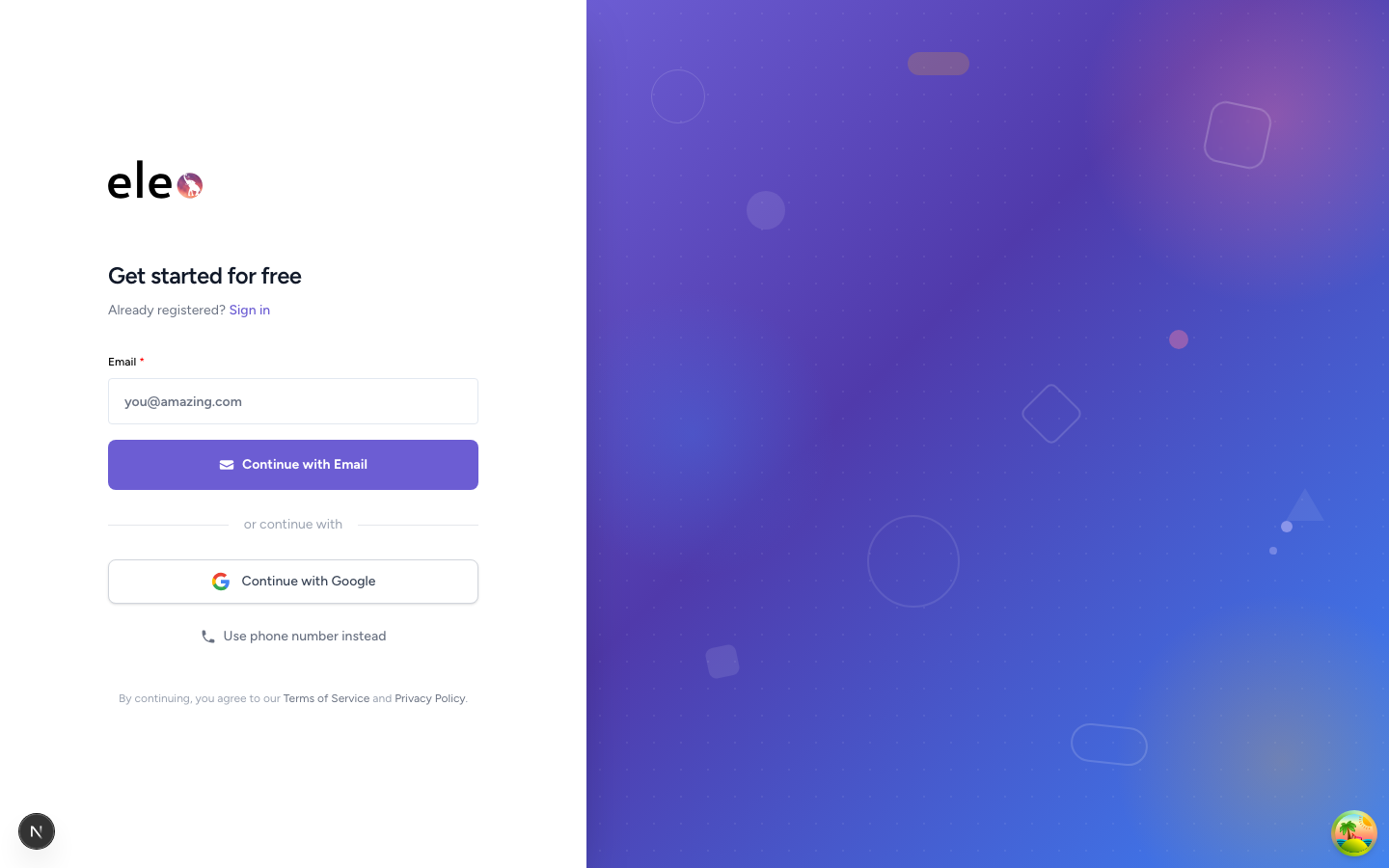
The Eleo sign-up form. Enter your email to get started. - 2
Enter your email address
Type your email address into the sign-up form and click Continue. Use an email address you have reliable access to, as this will be your primary login method. Business email addresses work best, but any valid email is accepted.
- 3
Enter the magic code
Within a few seconds, you will receive an email from Eleo containing a one-time verification code. Enter this code on the verification screen to confirm your identity. If you do not see the email in your inbox, check your spam or junk folder.
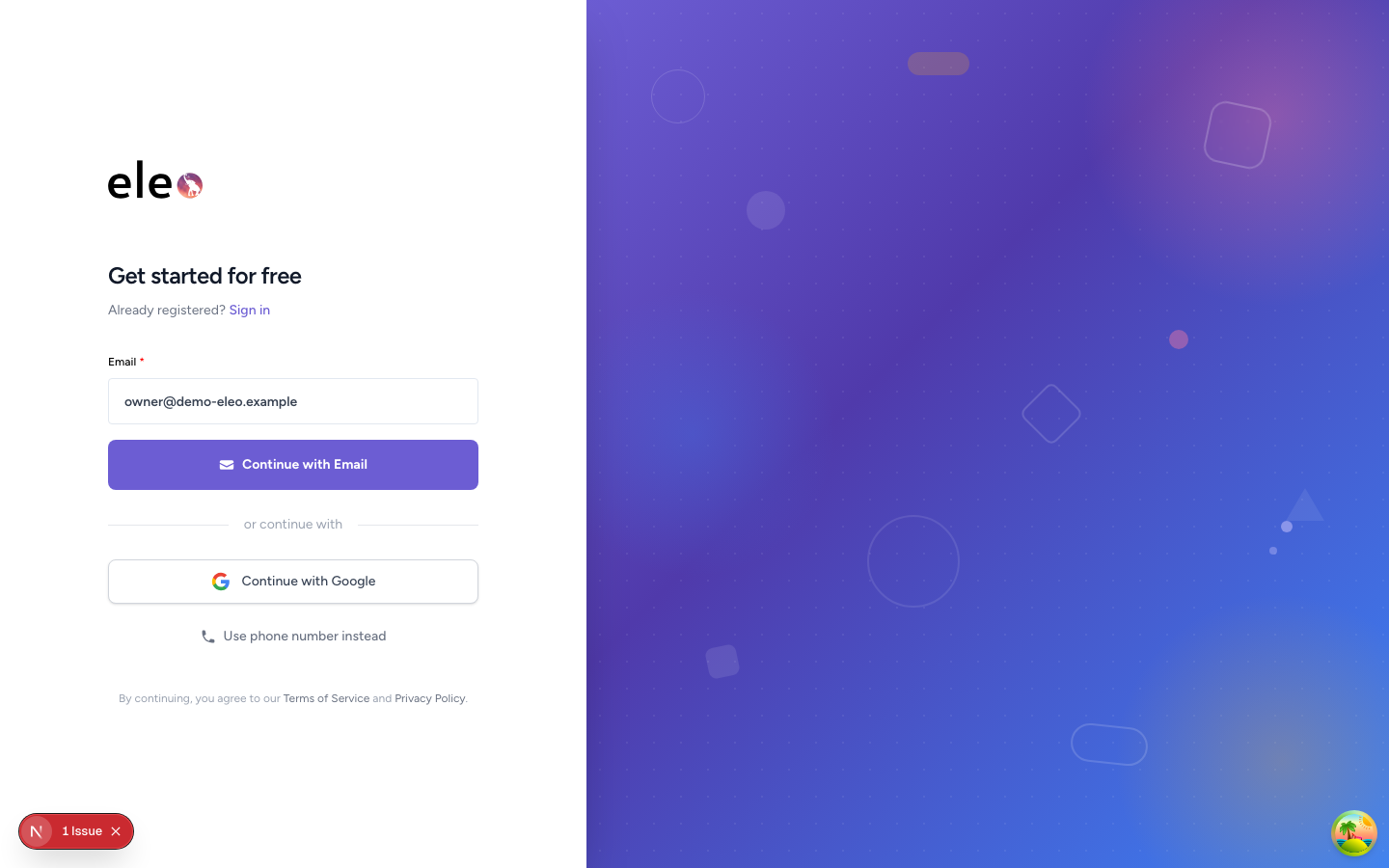
Enter the verification code sent to your email. Magic codes expire after 15 minutesFor security, each code is valid for 15 minutes from the time it is sent. If your code has expired, return to the sign-in page and request a new one. Each new request invalidates any previously sent codes.
- 4
Account verified
Once you enter the correct code, you will be signed in to Eleo Suite. If this is your first time, you will be taken to the store creation and onboarding flow to set up your business.
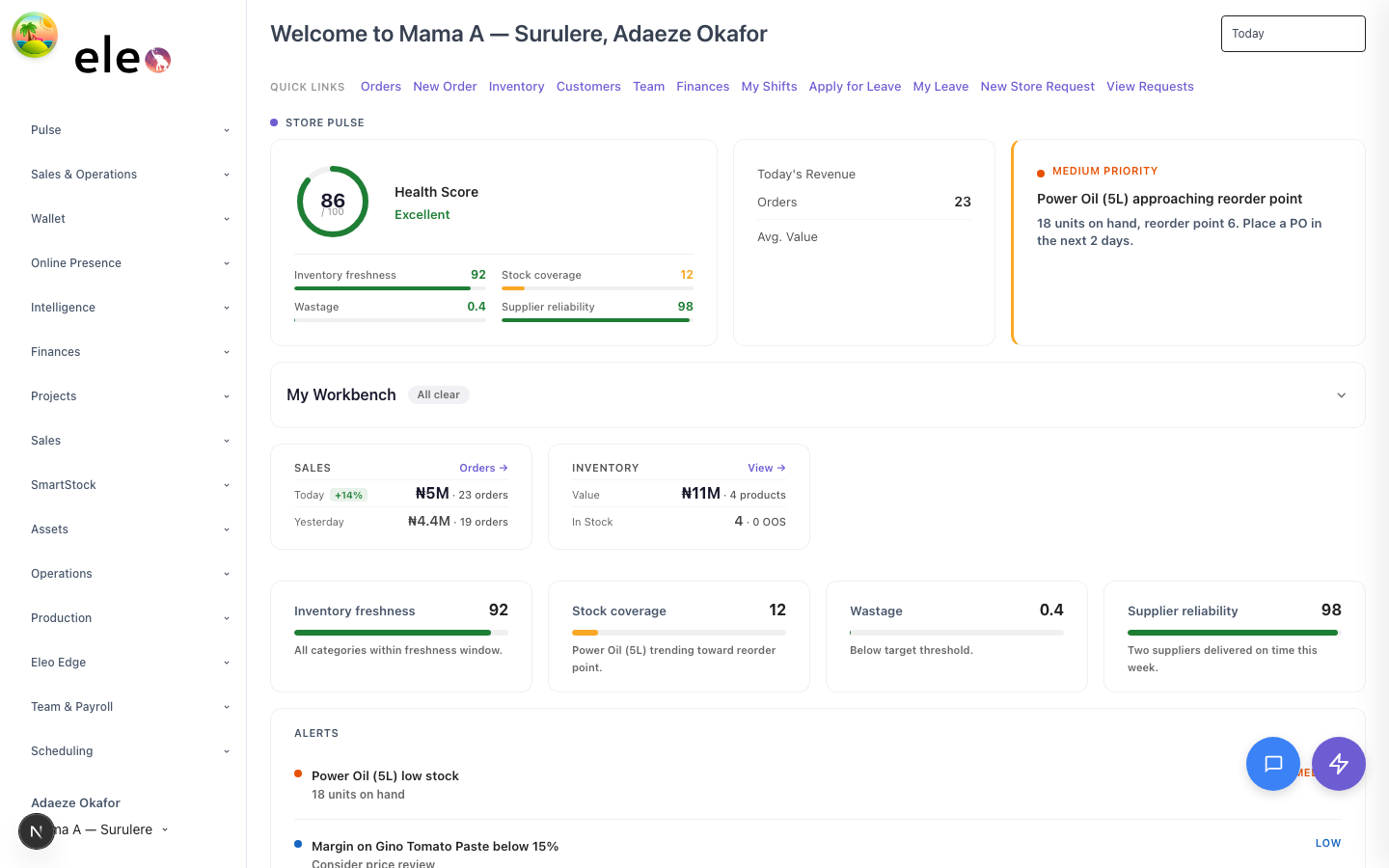
After verifying your email, you will be guided through setting up your first store.
Sign up with Google
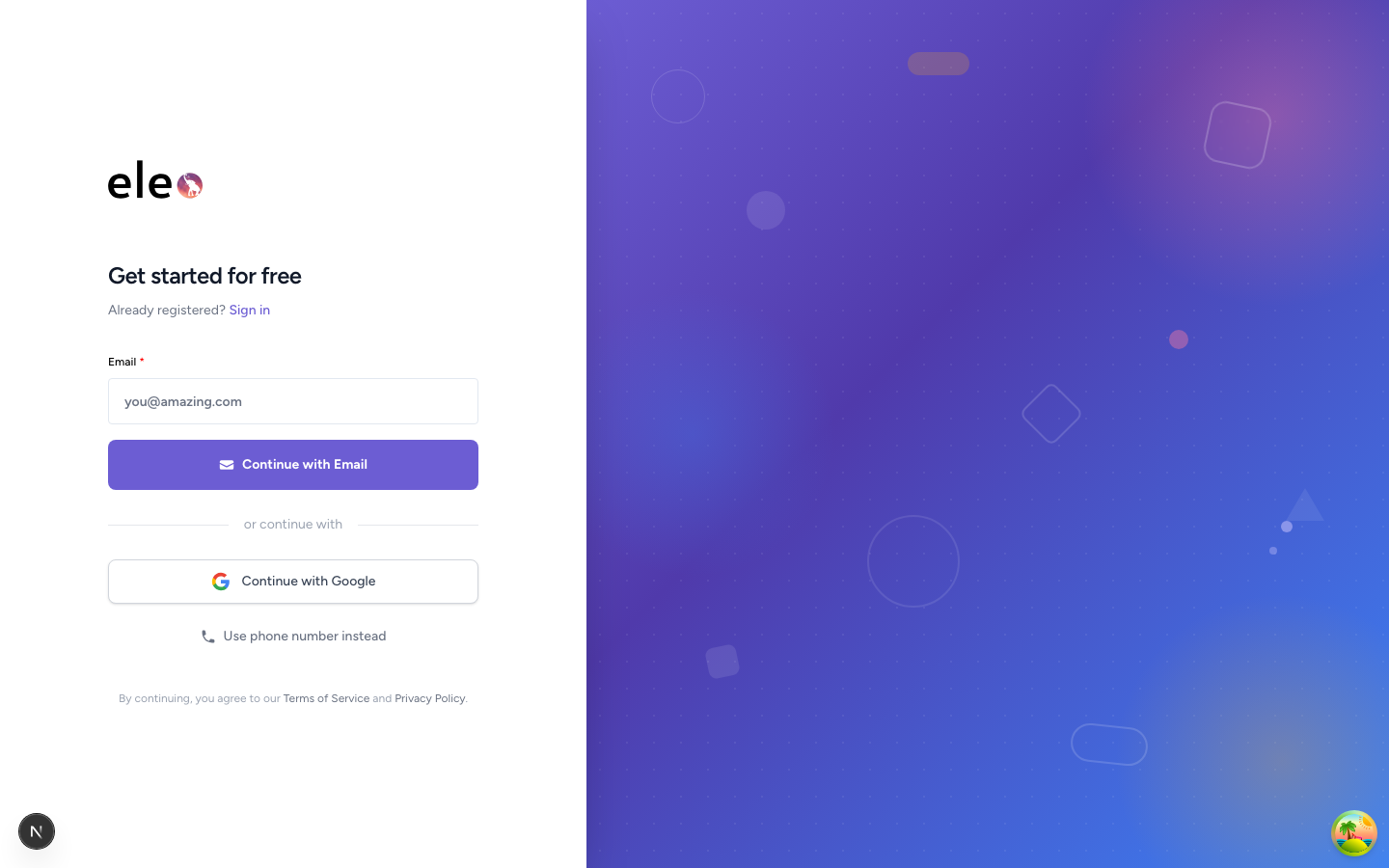
If you prefer to use your Google account, click the Continue with Google button on the sign-up page. You will be redirected to Google to authorize Eleo, and then returned to Eleo Suite automatically. No code or password is needed — your Google account handles authentication.
Sign up with phone number
To sign up with your phone number, select the Phone Number option on the sign-up page. Enter your phone number with the country code, and you will receive an SMS with a verification code. Enter the code to complete sign-up.
Signing in later
Every time you want to sign in to Eleo Suite, use the same method you signed up with — email magic code, Google, or phone number. There is no password to manage. Your browser session will remain active for an extended period, so you will not need to sign in every time you visit.
Using multiple devices
You can sign in to Eleo Suite on multiple devices simultaneously. Authenticate on each device where you want to be signed in. Your data syncs in real time across all active sessions, so changes made on one device are immediately reflected everywhere.
Since your email, Google account, or phone number is the key to accessing your Eleo account, make sure those accounts are well-protected. We recommend enabling two-factor authentication on your email provider and Google account for an extra layer of security.
Troubleshooting
If you run into issues during account creation, here are the most common solutions:
- No email received — Check your spam/junk folder. If using a corporate email, ask your IT team to allowlist emails from eleo.app. You can also try requesting a new code.
- Code expired — Magic codes are valid for 15 minutes. Go back to the sign-in page and request a fresh code.
- No SMS received — Ensure your phone number includes the correct country code. Check that your device has signal and can receive SMS messages. Try requesting a new code after a minute.
- Google sign-in fails — Make sure third-party cookies are not blocked in your browser, as the Google OAuth flow requires them. Try clearing your browser cache or using a different browser.