
Activity Log
Track and review every action taken across your organisation with the Eleo audit trail.
Overview
The Activity Log gives you a complete, chronological audit trail of every significant action taken across your organisation. Whether a team member updates a product price, processes a refund, approves a leave request, or modifies store settings, the event is automatically recorded with full context — who did it, what changed, and when.
This is invaluable for accountability, troubleshooting discrepancies, and maintaining operational transparency across your team.
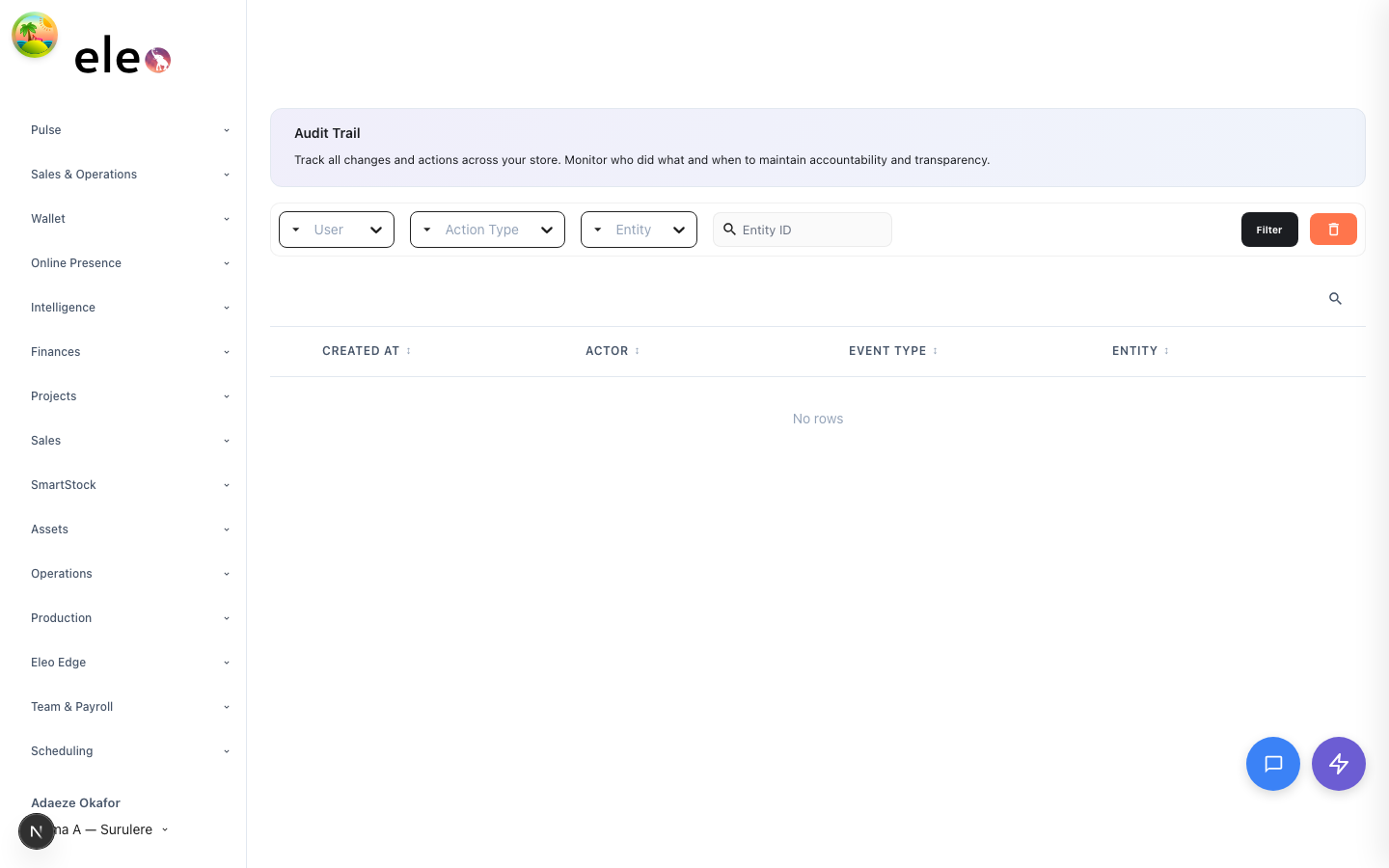
Accessing the Activity Log
Navigate to Audit Trail in the sidebar to open the organisation-wide activity log. This view shows all events across every store and entity type, with the most recent events listed first.
Access to the Activity Log requires the audit/view permission. If you do not see the Audit Trail option in your sidebar, ask your organisation admin to grant you the appropriate role.
What is tracked
Eleo tracks events across a wide range of entity types. Each event captures the action performed, the user who performed it, a timestamp, and any relevant data changes. The following entity types are tracked:
Inventory & Products
- Products — Created, updated, archived, price changes, stock adjustments
- Bundles — Bundle creation, component changes
- Batches — Batch creation, status updates, expiry tracking
- Inbound Stock — Stock receipts, adjustments
Orders & Sales
- Orders — Created, fulfilled, cancelled, payment status changes
- Transactions — Payment processing events
- Refund Requests — Submitted, approved, declined
- Deals — Promotions created, modified, activated
Supply Chain
- Suppliers — Added, updated, deactivated
- Purchase Orders — Created, approved, received
- Goods Received Notes — Logged and reconciled
- Supplier Invoices & Payments — Recorded and settled
- Supplier Credit Notes — Issued and applied
Finance
- Budgets — Created, modified, closed
- Recurring Obligations — Scheduled payments created and updated
- Payment Plans — Configured and adjusted
- Operational Payment Requests — Submitted and approved
- Cash Advances — Requested, approved, settled
Team & Operations
- Users — Invited, role changes, deactivated
- Leave Requests — Submitted, approved, declined
- Tasks — Created, assigned, completed
- Change Requests — Submitted, reviewed, approved
- Comments — Added to entities
- Alerts — Triggered and acknowledged
Store & Account
- Store — Settings changes, configuration updates
- Store Ratings — Received and responded to
- Store Requests — Submitted and processed
- Account — Profile updates, authentication events
- Production Logs — Production runs recorded and completed
Filtering events
The Activity Log can contain thousands of events, so Eleo provides powerful filtering to help you find exactly what you need. Use any combination of the following filters:
Activity Log filter controls
- User — Filter by the team member who performed the action. The dropdown shows all users who have recorded events, along with the count of their actions.
- Action Type — Filter by the kind of action (e.g., “Product Created”, “Order Cancelled”, “Price Updated”). Each action type shows how many matching events exist.
- Entity Type — Filter by the category of record affected (e.g., Product, Order, Supplier, Leave Request). Useful when investigating changes to a specific area of your business.
- Entity ID — Search for events related to a specific record by entering its ID. This is especially useful when tracing the full history of a single order, product, or transaction.
Filters can be combined. For example, you can filter for all “Price Updated” actions performed by a specific user in the last week to audit who changed product pricing.
Reading an event
Each event in the log displays:
- Action — A human-readable description of what happened (e.g., “Product price updated”, “Order #1042 cancelled”).
- Performed by — The name and avatar of the user who took the action.
- Timestamp — The exact date and time the action occurred, displayed in your store’s timezone.
- Entity link — A clickable link that takes you directly to the affected record (e.g., the product page, the order detail) so you can see its current state.
Entity-level activity
In addition to the organisation-wide Activity Log, many individual record pages include an Activity tab that shows only the events related to that specific entity. For example, a product detail page has an Activity tab showing every change ever made to that product — price updates, stock adjustments, description edits, and so on.
This entity-level view uses the same filtering and display as the main Activity Log, but is automatically scoped to the relevant record.
Activity tab on a product detail page
Permissions
The Activity Log is a sensitive feature that provides visibility into all team actions. Access is controlled by the Audit permission domain:
audit/view— Required to access the organisation-wide Activity Log from the sidebar.
Entity-level Activity tabs on individual record pages follow the same permission model as the parent entity — if a user can view an order, they can see that order’s activity history.
For audit integrity, activity events are immutable. They cannot be edited or removed by any user, including organisation admins. This ensures a tamper-proof record of all actions.
Common use cases
- Investigating discrepancies — A cash register is short? Filter the Activity Log by the relevant shift and user to see exactly what transactions occurred.
- Tracking who changed a price — Filter by entity type “Product” and action type “Updated” to see all recent price modifications and who made them.
- Auditing refunds — Filter by “Refund Request” entity type to review all refund activity, including who approved or declined each request.
- Onboarding oversight — After adding a new team member, review their recent activity to ensure they are following correct procedures.
- Compliance — Export or review activity logs during audits to demonstrate operational accountability and traceability.